

There’s a special kind of panic that comes with pressing the power button on a brand new PC for the first time. The fans spin. The lights come on. And the monitor shows… nothing. One minute goes by, then two, and you start mentally rehearsing the return form.
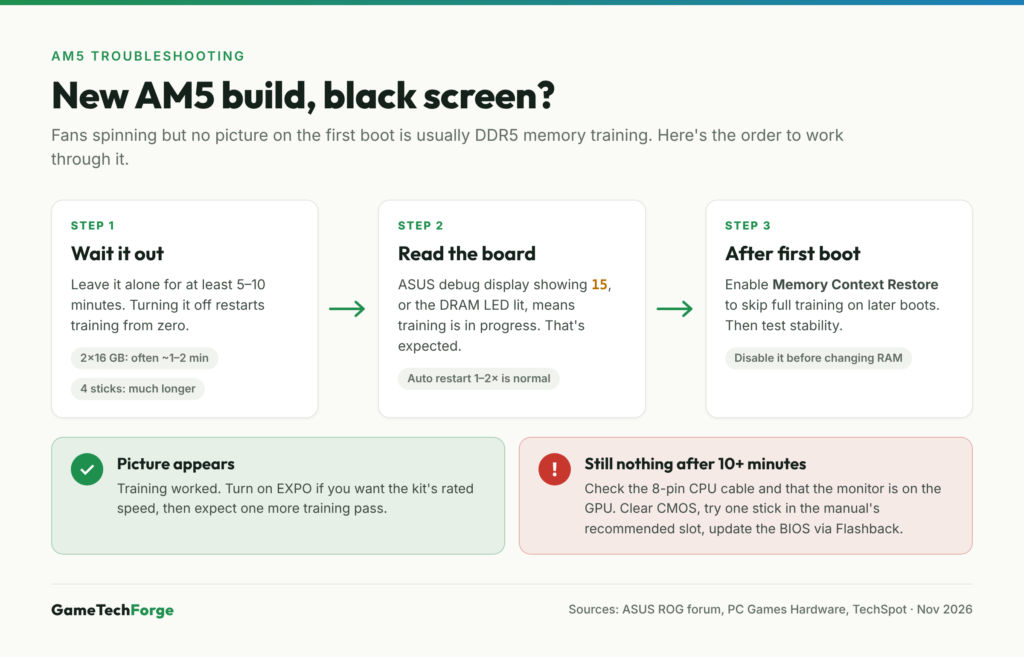
Before you do anything drastic, take a breath. On a Ryzen AM5 PC, a black screen on the first boot is almost always memory training, and it’s completely normal. The motherboard is busy testing your new DDR5 memory and working out how to talk to it. It can take anywhere from under a minute to several minutes, depending mostly on how much memory you have. Give it a good 5 to 10 minutes before you touch anything. If you switch it off halfway through, it just starts again from the beginning.

What is memory training, anyway?
DDR5 memory is so fast that tiny differences start to matter, like the length of the wires on the board, the temperature, and small differences between individual memory chips. So before the first boot, the motherboard runs a long series of read and write tests. It keeps adjusting timings, voltages and how the data signals line up until it finds settings that work reliably for your particular CPU, board and memory kit.
ASUS describes it as the board finding valid “signal margins”. TechSpot adds that the process also makes up for how far each memory stick sits from the CPU. It’s a bit like a band doing a sound check before the show. Nobody in the audience enjoys it, but the concert sounds better for it.
Full training happens on the very first boot of a new build, on the first boot after a BIOS update, after you clear the CMOS, and after you change your memory or memory settings, such as turning on EXPO.
How long is “normal”?

Annoyingly, there’s no official number, and reports are all over the place. An ASUS forum moderator says training can take 5 to 15 minutes, depending on your setup and how much memory you have. PC Games Hardware reported in October 2026 that the logo can take 30 to 60 seconds or more to show up, and longer with more RAM or with EXPO turned on. Back in 2022, TechSpot found an early ASRock BIOS took about 100 seconds with two 16 GB sticks and over 400 seconds with four 32 GB sticks, which a later BIOS update improved. Owners on the AnandTech forums commonly mention around one to two minutes or a bit more on the first boot.
The pattern behind all of that is simple. More memory means longer training, especially four sticks instead of two. Bigger sticks and EXPO profiles add time too. A pair of 16 GB sticks usually finishes far sooner than four 32 GB ones.
How to tell it’s training, not broken

Your PC drops a few hints. ASUS boards with a little debug display show Q-code 15 during training, and ASUS says that’s expected and you shouldn’t interrupt it. Boards with simple debug lights usually have the DRAM light on, often yellow or orange. It may flicker or swap back and forth with the CPU light.
Meanwhile the fans spin, the RGB glows and the monitor insists there’s no signal. The PC might even restart itself once or twice before the first picture finally appears. All of that is the board doing its homework.
Making later boots faster

Once the PC has started up properly at least once, you can speed up future boots with a setting called Memory Context Restore. It tells the board to reuse the training results it already found, instead of retraining every time you switch the PC on from cold. ASUS recommends turning it on after the first successful training. On ASUS boards it lives under Extreme Tweaker, then DRAM Timing Control, and the BIOS search box will find it quickly.
It isn’t perfect. Some owners report crashes with it switched on, especially with aggressive memory overclocks. One AnandTech forum member got a Windows crash within a minute and switched it back off. Several people say it behaves best when the related Power Down memory option is turned on as well.
There’s one important habit to build. If you change your RAM or memory settings, turn Memory Context Restore off first, so the board does a fresh, full training. Old training data is the main thing that causes trouble.
PC Games Hardware also points to a newer option on some ASUS and ASRock boards, called DDR Training Runtime Reduction. You’ll find it under the AMD CBS memory training options, and it cuts the training effort even further. The site reports that it may switch itself off automatically when memory overclocking (including EXPO) is on, and that it only helps boot time, not frame rates.
If you turn on either option, time a few cold boots and run a memory stability test afterwards, just to be sure.
When it’s more than just training
Give it a genuine 10 minutes first. If there’s still no picture after that, work through these in order.
- Check the basics. Is the monitor plugged into the graphics card rather than the motherboard? Is the 8-pin CPU power cable connected? Is the RAM clicked all the way in at both ends?
- Look at the debug light or code. A DRAM light that’s still on after more than 10 minutes points at the memory. A CPU or VGA light points somewhere else.
- Clear the CMOS, using the board’s button or jumper, or by taking out the battery with the power supply unplugged. Then wait through training again, because it’ll start from scratch.
- Make sure EXPO is off for the very first boot. If you turned it on before the PC had ever booted, clearing the CMOS resets it.
- Try just one stick, in the slot your manual recommends for a single stick. If one works and two don’t, test each stick on its own.
- Update the BIOS. Board makers have sped up training with firmware updates, and ASRock released one specifically for long AM5 boot times. If the board won’t boot at all, you can still update it with BIOS Flashback, and our BIOS Flashback guide shows you how.
And if you’re wondering whether switching it off during training does any harm, it doesn’t. You just lose the time you already waited, because training starts over on the next boot. That’s why ASUS says to leave it alone.
If your PC is slow to start every single day, not just the first time, that’s because many boards retrain on every cold boot by default. Turning on Memory Context Restore after a successful first boot usually fixes it, with the caveats above.
How we researched this guide: we combined advice from an ASUS ROG forum moderator, reporting from PC Games Hardware and TechSpot, and owner reports from the AnandTech forums, all checked on November 27, 2026. Times vary with the board, the BIOS version and the memory kit, so treat these figures as typical ranges rather than promises.


